
Setup
How to connect Video Compressor to Claude
Install the app in Applications
Download Video Compressor and move it to the Applications folder. Claude saves the app’s location, so it must stay there.
Open Integrate with AI
Open Video Compressor and click Integrate with AI in the toolbar. Choose the Claude tab.
Turn on where you use Claude
Claude Desktop is the chat in the Claude app. Claude Code covers the Code tab, the terminal and IDE plugins. Turn on one or both and click Connect to Claude.
Restart Claude
Quit Claude Desktop with ⌘ Q and open it again. Claude rewrites its settings when it quits, so Video Compressor waits for it to close and shows Waiting for Claude to quit (⌘Q)… until then. For Claude Code, start a new session.
Check the toolbar
The button now reads Claude ✓. That’s it.
Video Compressor opens by itself when Claude sends a video, so it doesn’t need to be running. Progress shows up on the MacBook notch.
Usage
What to ask Claude
Write in plain words. Claude picks the right tool and passes the file path to the app. The compressed file is saved next to the original as name_100MB.mp4.
Compress ~/Movies/Keynote_final.mov to 100 MBcompress_video
How good will ~/Desktop/demo.mov look at 25 MB?estimate_quality
Make this screen recording fit 10 MB, I don’t need the soundcompress_video · remove_audio
Show the videos I compressed todaycompression_history
| Tool | What Claude can do with it |
|---|---|
| compress_video | Compress a file to a size limit. Options: HEVC or H.264, keep audio or video quality, remove audio, cap resolution at 4K, 1440p, 1080p or 720p. |
| estimate_quality | Predict resolution, bitrate and quality at a given size, without compressing. |
| compression_status | Follow a long job until it finishes. |
| compression_history | List recently compressed files with paths and sizes. |
No setup needed
Video too large to attach to Claude?
Use Compress for Claude. It shrinks the video and puts the new file on your clipboard, so you can paste it into any chat, including Claude in the browser.
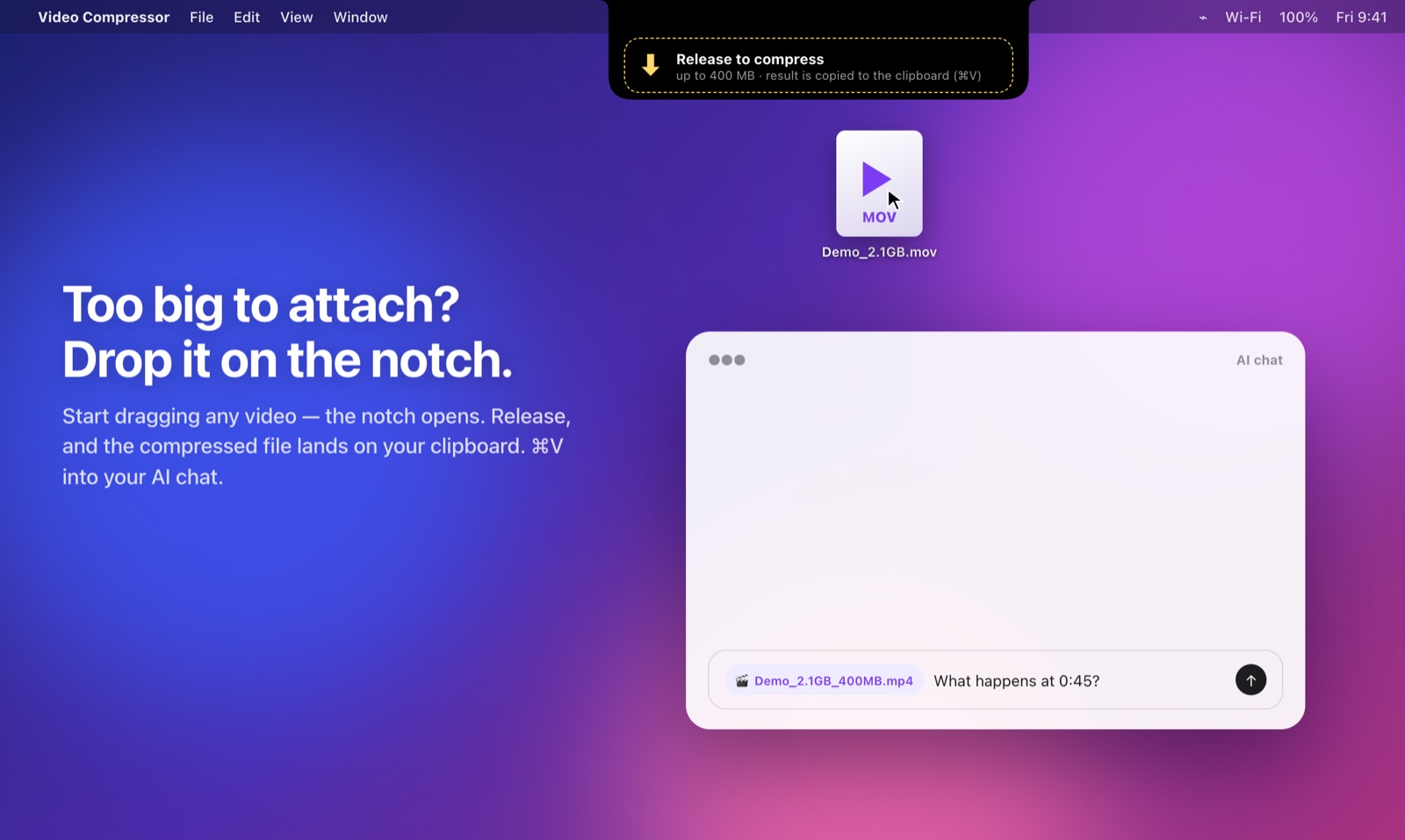
Drop the video on the notch
Start dragging a video. The notch opens and shows Compress for Claude. Release the file on it. In Finder you can also right-click a video and choose Compress for Claude under Quick Actions or Services.
Paste it into the chat
When the notch shows the new size and ⌘V, click the message field in Claude and paste.
The size limit for Compress for Claude is 400 MB by default. Change it in the app’s quality panel: Compress for Claude: limit.
For advanced users
Manual setup
The button does this for you. If you manage Claude settings yourself, add the server by hand.
claude mcp add --scope user video-compressor -- "/Applications/Video Compressor.app/Contents/MacOS/VideoCompressor" --mcp
{
  "mcpServers": {
    "video-compressor": {
      "command": "/Applications/Video Compressor.app/Contents/MacOS/VideoCompressor",
      "args": ["--mcp"]
    }
  }
}
Edit the Claude Desktop file only while Claude is closed, otherwise Claude overwrites it when it quits.
Troubleshooting
Questions about Claude and video
Why does Claude say the video file is too large?
Chat apps limit the size of attachments. Compress the video under the limit first: drop it on the notch with Compress for Claude and paste the smaller file, or connect Video Compressor so Claude can compress files on your Mac itself.
Claude still uses ffmpeg instead of the app
Check that the toolbar shows Claude with a checkmark, then quit Claude Desktop completely with ⌘Q and open it again. Claude only loads new tools on start.
Does my video get uploaded to compress it?
No. Video Compressor compresses the video on your Mac with the hardware encoder. Claude only receives the file path and the result size.
Does it work on claude.ai in the browser?
The integration works in the Claude desktop app and Claude Code, which can run tools on your Mac. In the browser, use Compress for Claude on the notch and paste the compressed file into the chat.
How do I disconnect it?
Open Integrate with AI, choose Claude and click Disconnect Claude. Video Compressor keeps a backup of your Claude settings from before it connected.