Mac video compressor
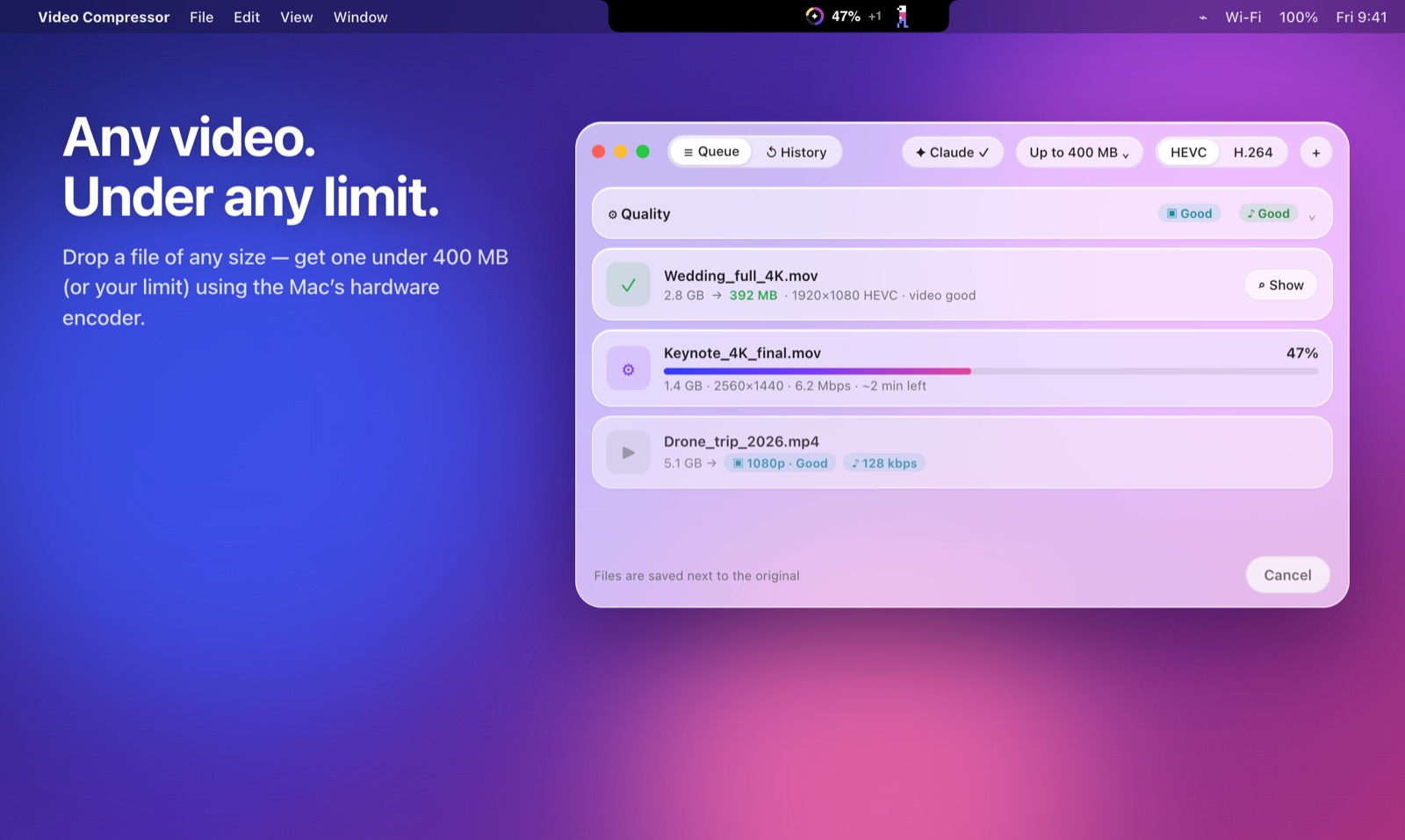
Queue many videos and compress them in one go
Add a whole folder of screen recordings, see the expected size and quality for each file, then press Compress all. The Mac’s hardware HEVC and H.264 encoders keep it fast and quiet.
Free · macOS 26 · Apple silicon & Intel
Compress any video to the exact size you need. Pick 400 MB, 25 MB or 10 MB, drop the file, and get an MP4 that fits under the limit. It runs on your Mac’s hardware encoder, so nothing is uploaded.
Free download. Works offline. Compresses MP4, MOV, HEVC and H.264.Video Compressor runs on a Mac. Send yourself the link and download it there.
How to compress a video on Mac
Pick a preset like 400 MB or 25 MB, or type any size in megabytes.
Drag MP4, MOV or any other video into the window, or onto the MacBook notch.
The compressed MP4 is saved next to the original as name_400MB.mp4. Progress stays on the notch while you work.
Compress video to a specific size
Most compressors ask for a quality level and hope the file fits. Video Compressor works from the size you need, calculates the bitrate from the video length and re-encodes until the file is under the target.
| Where it goes | Target size | Example clip gets |
|---|---|---|
| Large uploads and AI chats | 400 MB | |
| Messengers and team chats | 100 MB | |
| Gmail attachment limit | 25 MB | |
| Discord free upload | 10 MB |
Mac video compressor
Add a whole folder of screen recordings, see the expected size and quality for each file, then press Compress all. The Mac’s hardware HEVC and H.264 encoders keep it fast and quiet.
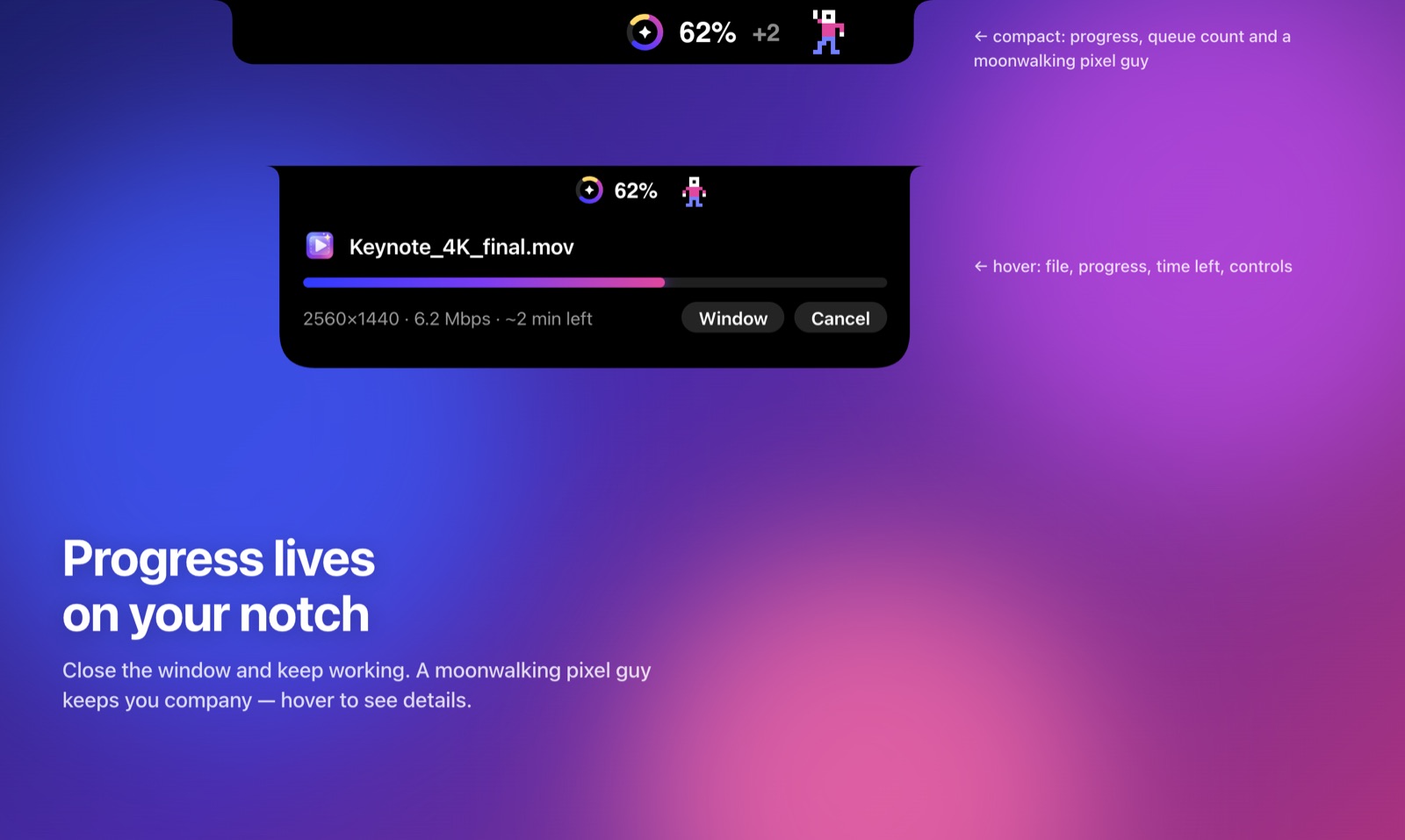
Progress on the notch
The MacBook notch grows to the right and shows the progress ring, percent done and time left. Hover it for details. A small pixel dancer keeps you company.
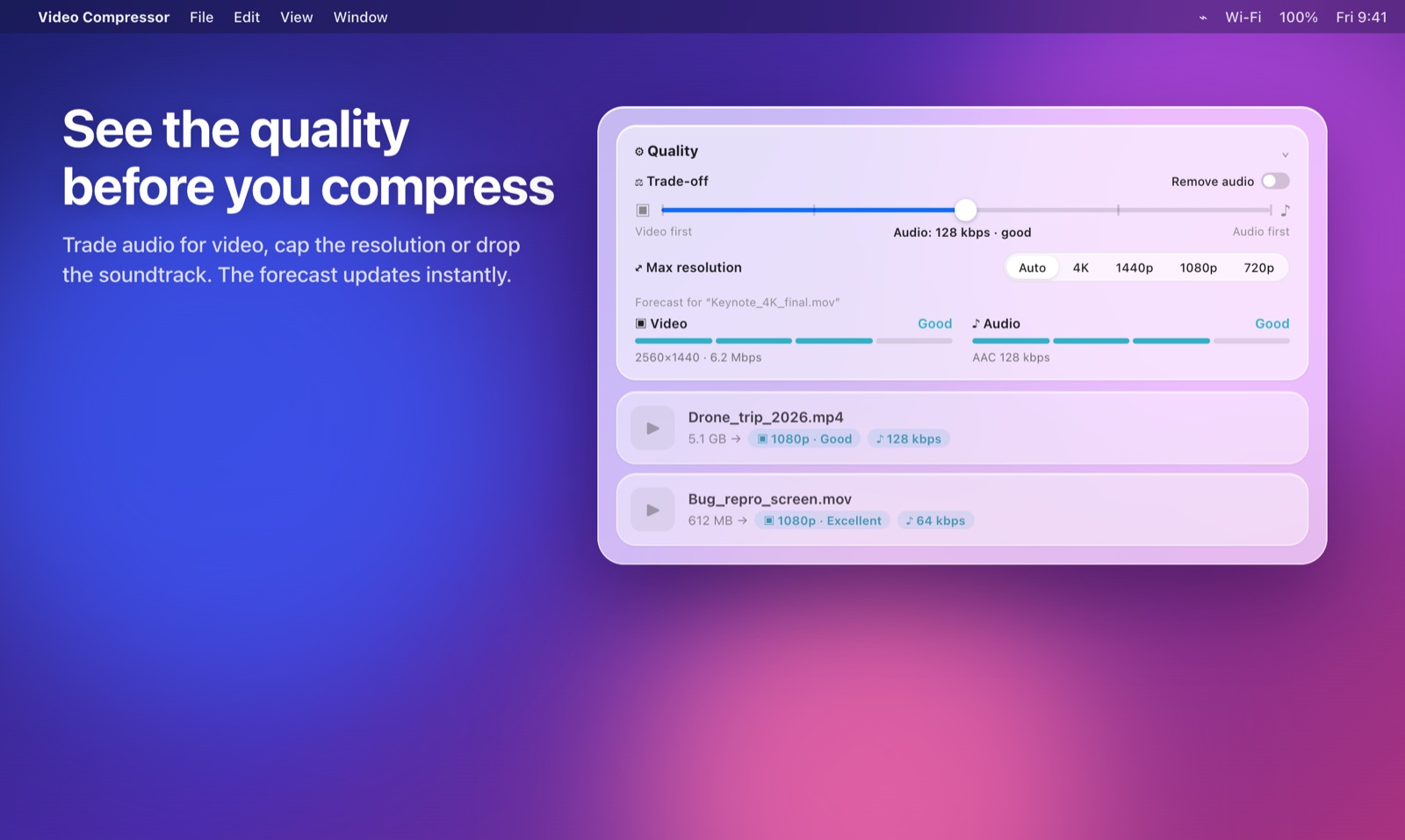
Quality forecast
The forecast shows resolution, video quality and audio quality for the size you picked. Slide between audio and video to choose what to give up, cap the resolution or remove audio completely.
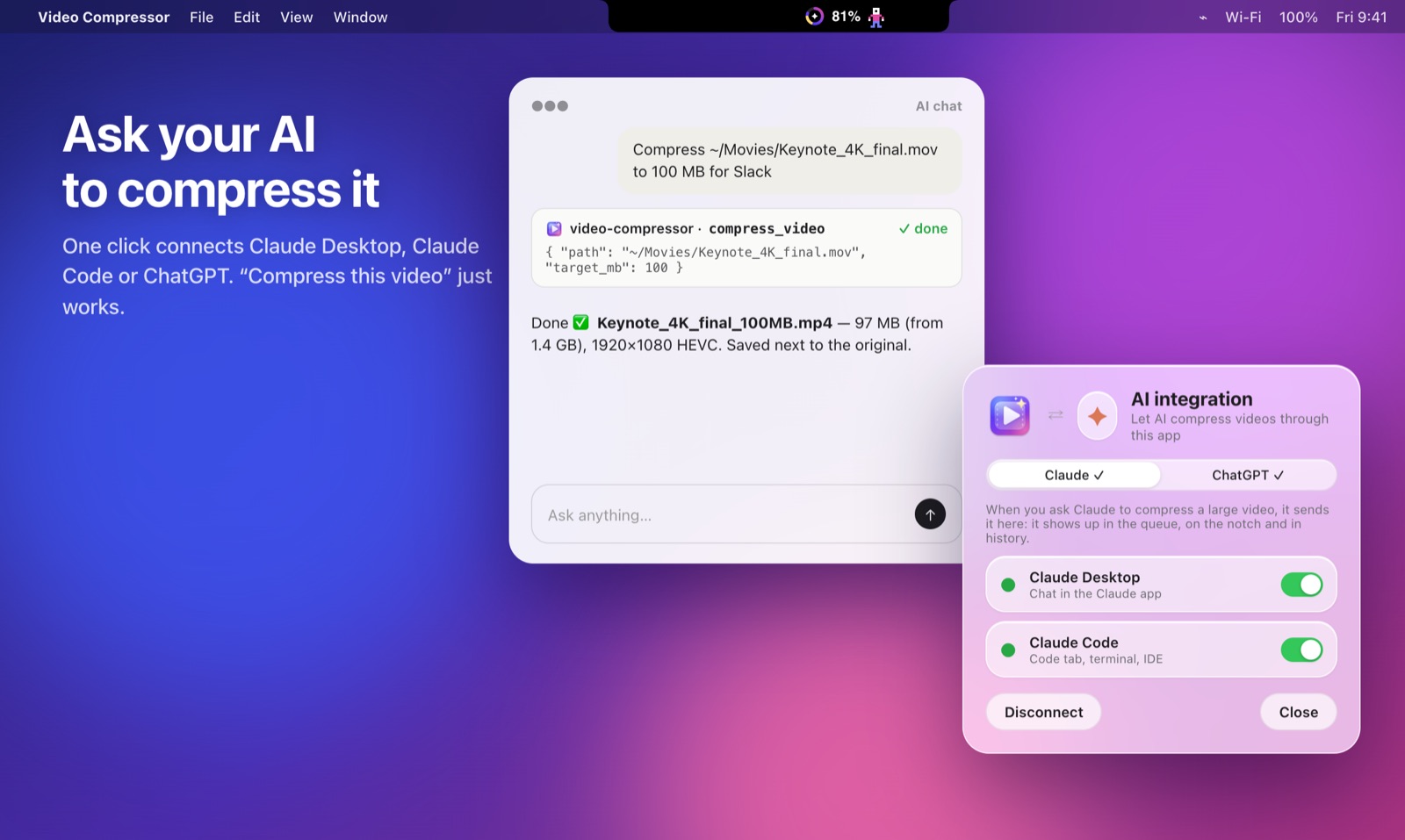
Works with Claude and ChatGPT
Click Integrate with AI once. After that, asking Claude or ChatGPT to “compress ~/Movies/demo.mov to 100 MB” runs through Video Compressor on your Mac, with progress on the notch.
File too large to send?
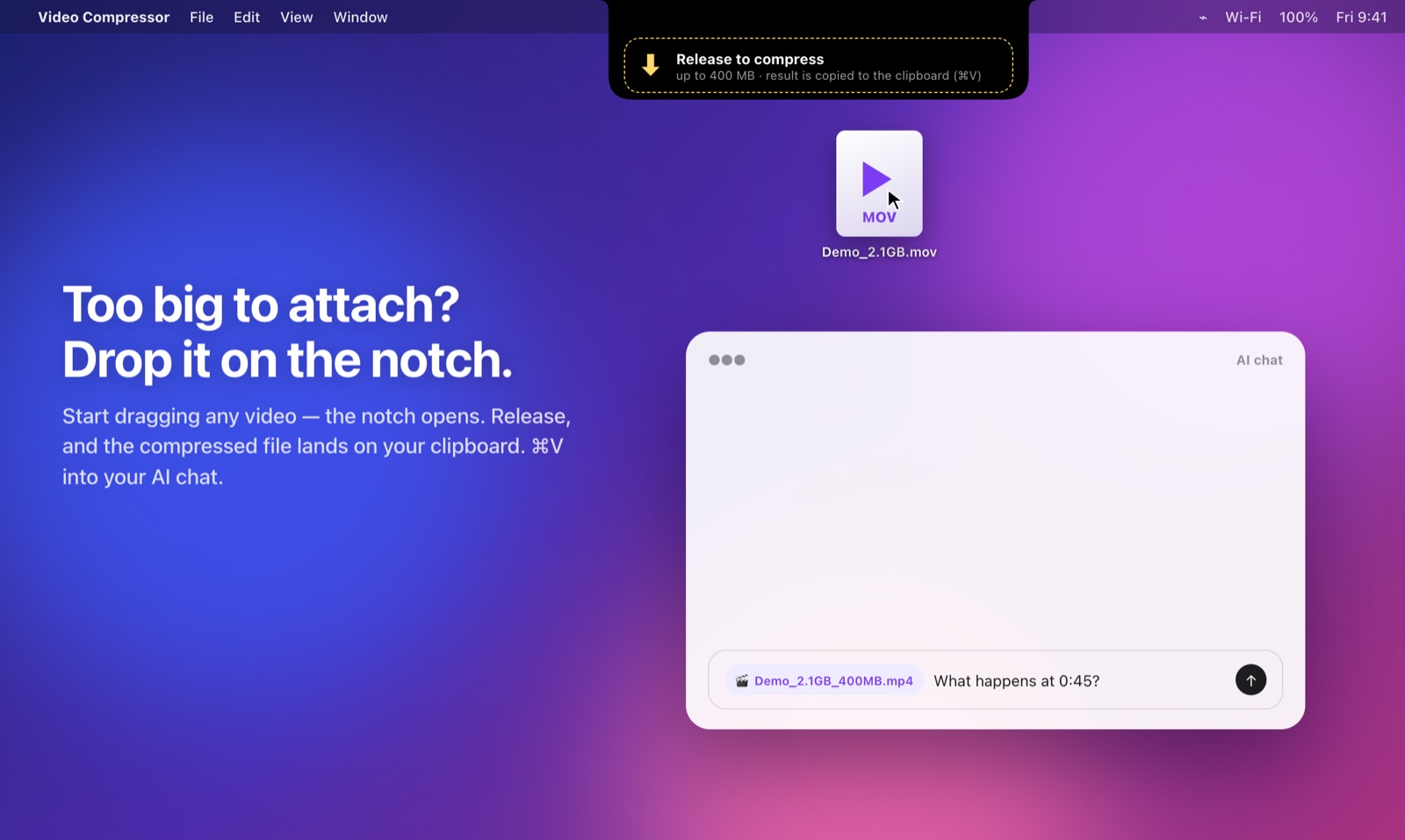
Drag a big video onto the notch. Video Compressor shrinks it under the chat’s upload limit and puts the new file on your clipboard, ready for ⌘V. It also works from Finder: right‑click a video and choose Compress for Claude.
History
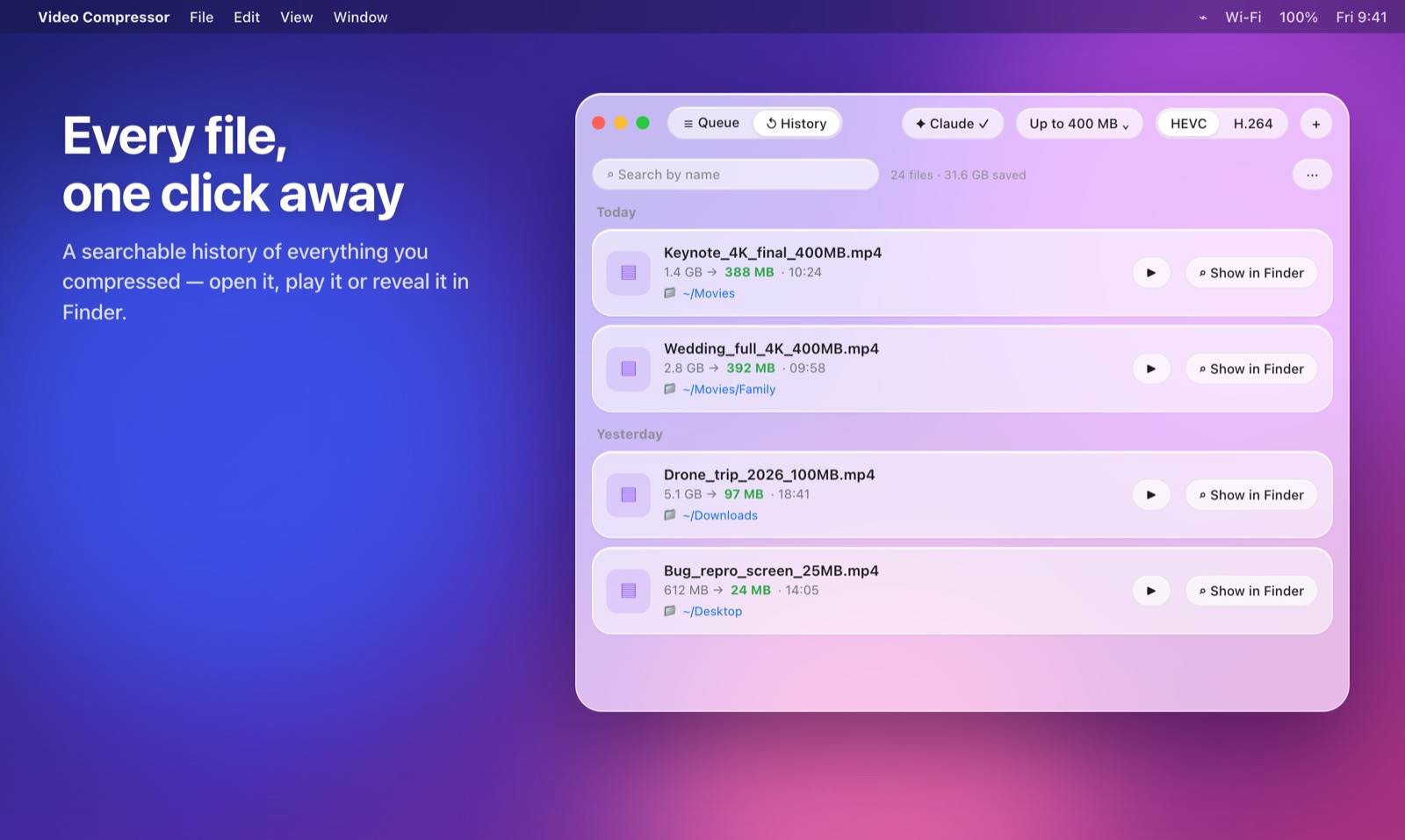
History keeps every file you compressed with its original and new size. Search it, play a file or show it in Finder.
Video bitrate calculator
File size is bitrate multiplied by length. Enter the video length and the size you need to see the bitrate and the resolution Video Compressor would pick.
Video bitrate
4.2 Mbps
Estimate for 16:9 video at 30 fps. 3% of the size is kept as a safety margin for the container.
MP4 and MOV compressor
Screen recordings, iPhone videos, camera footage and exports from editing apps. The output is an MP4 with HEVC or H.264 video and AAC audio.
Offline video compressor
Online video compressors make you upload gigabytes before they start, and the file sits on someone else’s server. Video Compressor runs locally. No account, no upload, no watermark.
Questions
Open Video Compressor, choose a target size such as 400 MB or 25 MB, drop the video into the window and click Compress. The new file is saved next to the original.
Yes. Video Compressor for Mac is free to download and use.
No. Compression runs on your Mac with the built-in hardware encoder. Your videos never leave the computer.
Any video macOS can play, including MP4, MOV, M4V, HEVC and H.264. The result is an MP4 file.
Set the target size in megabytes. Video Compressor calculates the bitrate from the video length, picks a resolution that stays sharp at that bitrate and re-encodes until the file fits under the limit.
Some detail is lost when a file gets much smaller. The quality forecast shows the expected resolution and video and audio quality before you start, so you can choose whether to give up audio quality, resolution or video bitrate.
Any Mac with Apple silicon or Intel running macOS 26 Tahoe or later.
Free video compressor for Mac. Any video, under any limit.
Download for Mac — Free